

Firebird Management Tool - User Manual
Table of Contents
- Introduction
- What This Tool Does
- Getting Started
- Using the GUI Application
- Using the Command Line Application
- Database Operations Explained
- Working with Remote Databases
- Troubleshooting
- Glossary
Introduction
The GTR Firebird Database Management Tool helps you maintain and upgrade Firebird databases. It provides two ways to use it:
- GUI Application (
firebird-gui.exe): A window-based program with buttons and menus - recommended for most users - Command Line Application (
firebird_manage.exe): A text-based program for advanced users or automation
Both applications perform the same tasks, just with different interfaces.
What This Tool Does
This tool performs three main operations:
| Operation | What It Does | When to Use It |
|---|---|---|
| Vacuum (FB 2.5) | Cleans up a Firebird 2.5 database | When your database has grown too large or is slow |
| Vacuum (FB 5.x) | Cleans up a Firebird 5.x database | When your database has grown too large or is slow |
| Migrate (2.5 to 5.x) | Upgrades a database from version 2.5 to 5.x | When upgrading to a newer Firebird server |
What is “Vacuum”?
When you delete data from a Firebird database, the space is not immediately reclaimed. Over time, this can make your database file larger than necessary. The “vacuum” operation:
- Creates a backup of your database
- Restores the backup to a fresh database
- This process removes all the unused space
Result: A smaller, faster database.
Getting Started
Before You Begin
Make sure you have:
- Firebird installed on your computer (version 2.5 and/or 5.x)
- Your database file (usually ends with
.fdb) - Database credentials (username and password - default is usually
SYSDBAandmasterkey)
First Time Setup
- Double-click
firebird-gui.exeto start the GUI application - Go to the Setup tab
- Click “Auto-Detect Firebird”
- The tool will search for Firebird installations on your computer
- Check the status indicators to see what was found
Using the GUI Application
The GUI application has three tabs: Setup, Operations, and Configuration.
Setup Tab
This tab helps you configure the tool for first-time use.
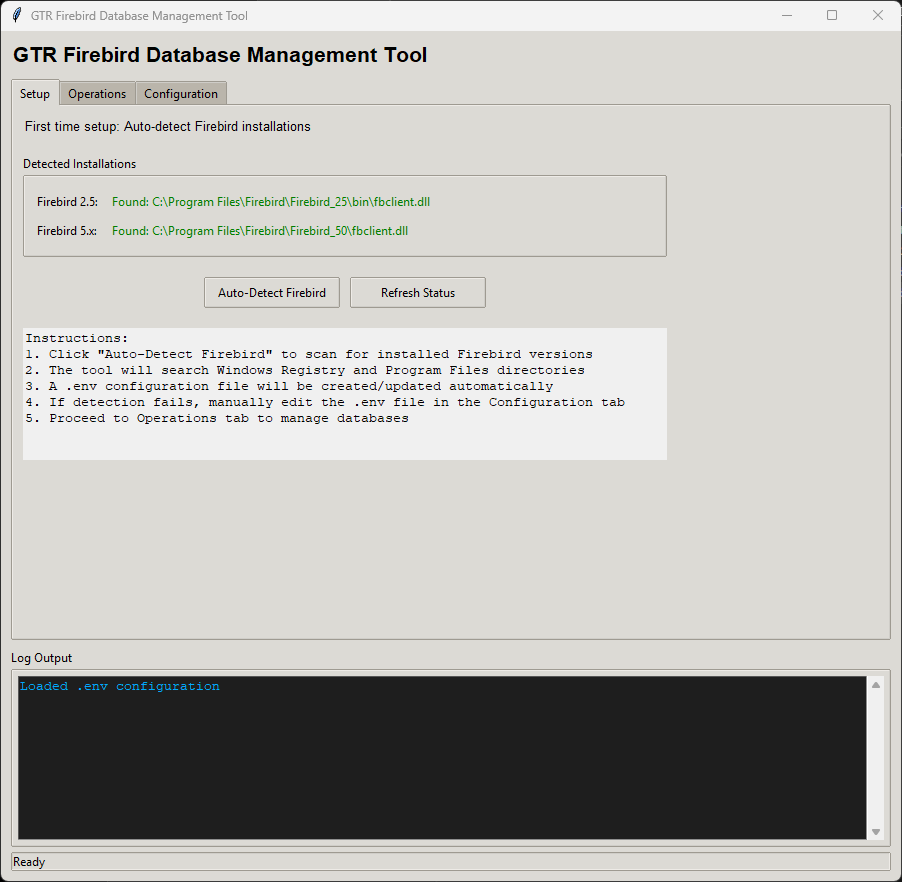
What You See
- Firebird 2.5 Status: Shows if Firebird 2.5 was found on your computer
- Firebird 5.x Status: Shows if Firebird 5.x was found on your computer
Status Colors
| Color | Meaning |
|---|---|
| Green | Firebird found and ready to use |
| Orange | Path configured but file not found |
| Red | Not configured or not found |
| Gray | Not yet checked |
Buttons
- Auto-Detect Firebird: Automatically searches for Firebird installations
- Refresh Status: Re-checks the current configuration
Step-by-Step: First Time Setup
- Click “Auto-Detect Firebird”
- Wait for the detection to complete (watch the Log Output at the bottom)
- Check that your Firebird versions show green status
- If detection fails, go to the Configuration tab to manually set the paths
Operations Tab
This is where you perform database operations.
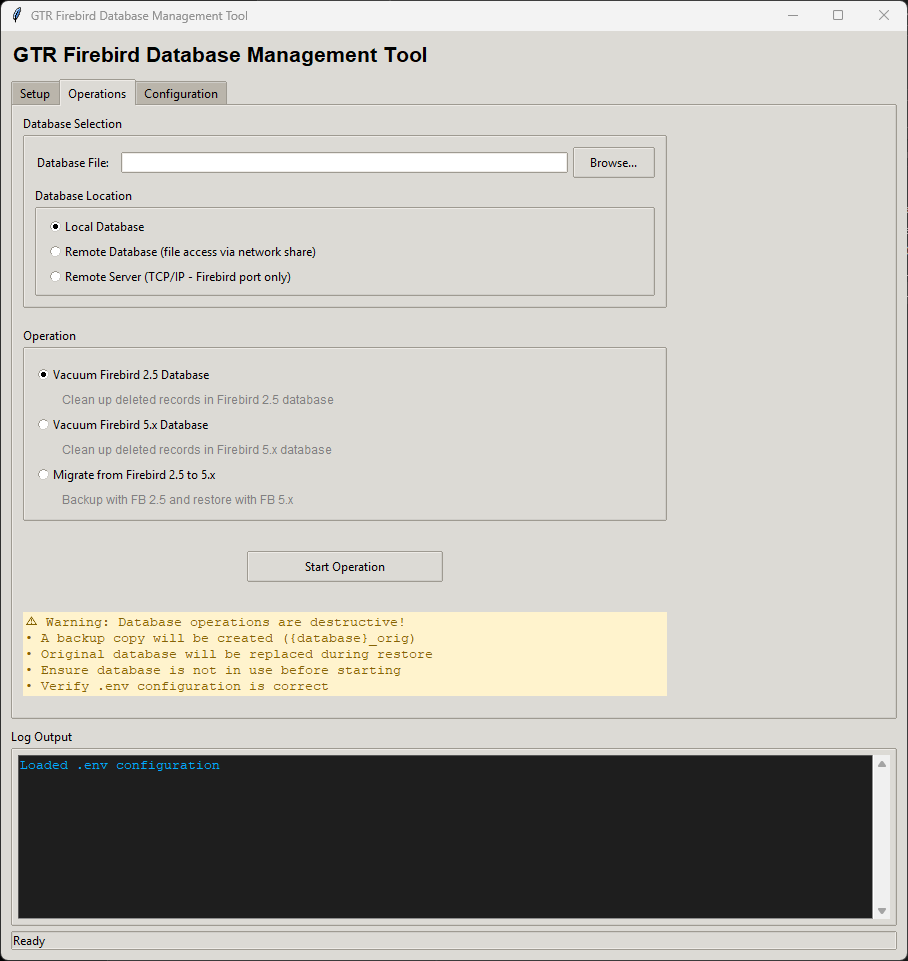
Step 1: Select Your Database
Option A: Browse for File
- Click the “Browse…” button
- Navigate to your database file (
.fdbfile) - Select it and click Open
Option B: Type the Path
- Type or paste the full path to your database in the text box
- Example:
C:\Data\MyDatabase.fdb
Step 2: Choose Database Location Mode
The tool supports three ways to access databases:
Local Database
- Select this for databases on your computer’s hard drive
- Example:
C:\Data\MyDatabase.fdb
Remote Database (File Access)
- Select this for databases on network shares
- Example:
\\SERVER\Share\Database.fdb - The tool will copy the database locally, process it, then tell you where to copy the result back
Remote Server (TCP/IP)
- Select this when you can only connect through Firebird’s network port
- You cannot see the database file, but you can connect to the Firebird server
- Enter the server details:
- Server Host: The computer name or IP address (e.g.,
192.168.1.100) - Port: The Firebird port number (default:
3050for 2.5,3055for 5.x) - Database Path on Server: The path as the server sees it (e.g.,
C:\Data\Database.fdb)
- Server Host: The computer name or IP address (e.g.,
Step 3: Choose an Operation
Select one of the following:
| Option | Description |
|---|---|
| Vacuum Firebird 2.5 Database | Clean up a Firebird 2.5 database |
| Vacuum Firebird 5.x Database | Clean up a Firebird 5.x database |
| Migrate from Firebird 2.5 to 5.x | Upgrade database from 2.5 to 5.x format |
Note:
Some options may be grayed out if the required Firebird version is not installed.
Step 4: Start the Operation
- Click “Start Operation”
- A confirmation dialog will appear - review the details
- Click Yes to proceed
- Watch the progress in the Log Output at the bottom
- Wait for the “Operation completed successfully” message
Important Warnings
- Close all programs using the database before starting
- The tool creates a safety backup (
{database}_orig) automatically - Operations can take several minutes for large databases
- Do not close the application while an operation is running
Configuration Tab
This tab lets you view and edit the settings file (.env file).
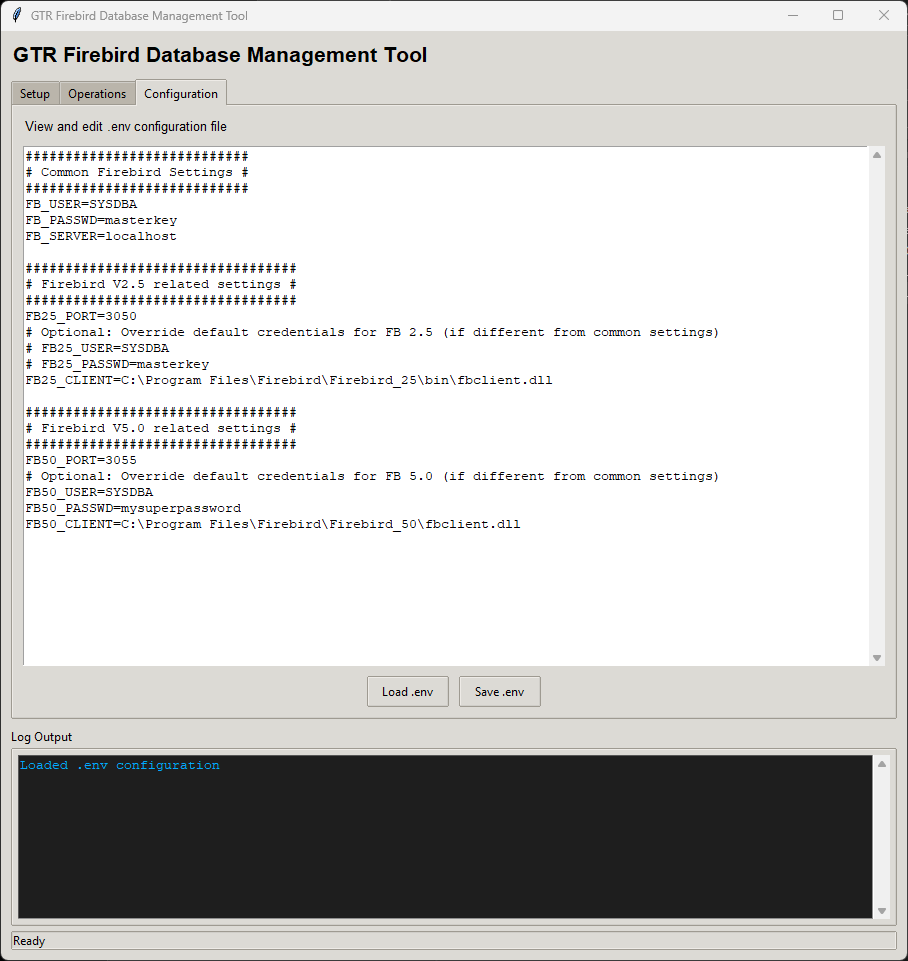
The Settings File
The .env file contains all the settings the tool needs:
FB_USER=SYSDBA          # Database username
FB_PASSWD=masterkey     # Database password
FB_SERVER=localhost     # Server address

FB25_PORT=3050          # Firebird 2.5 port
FB25_CLIENT=C:\...      # Path to Firebird 2.5 client file

FB50_PORT=3055          # Firebird 5.0 port
FB50_CLIENT=C:\...      # Path to Firebird 5.0 client file
Editing Settings
- Make changes in the text area
- Click “Save .env” to save your changes
- The tool will automatically re-check the configuration
Loading Settings
- Click “Load .env” to reload the settings file
- Useful if you edited the file externally
Different Passwords for Different Versions
If your Firebird 2.5 and 5.x servers have different passwords, you can set them separately:
# Common settings (used as fallback)
FB_USER=SYSDBA
FB_PASSWD=masterkey

# Override for Firebird 2.5
FB25_USER=SYSDBA
FB25_PASSWD=password25

# Override for Firebird 5.x
FB50_USER=SYSDBA
FB50_PASSWD=password50
Using the Command Line Application
The command line application is for advanced users who prefer text commands or need to automate operations.
Important: Local Databases Only
The CLI application only works with local database files. For remote databases (TCP/IP connections), use the GUI application instead.
Opening the Command Prompt
- Press
Windows Key + R - Type
cmdand press Enter - Navigate to the folder containing
firebird_manage.exe
Configuration
Before running operations, the CLI reads server settings from the .env file:
| Setting | Description | Default |
|---|---|---|
FB_SERVER | Firebird server hostname | localhost |
FB_USER | Database username | SYSDBA |
FB_PASSWD | Database password | masterkey |
FB25_PORT | Firebird 2.5 port | 3050 |
FB25_CLIENT | Path to Firebird 2.5 client DLL | (auto-detected) |
FB50_PORT | Firebird 5.x port | 3055 |
FB50_CLIENT | Path to Firebird 5.x client DLL | (auto-detected) |
You can also set version-specific credentials if needed:
FB25_USER,FB25_PASSWD- Override credentials for Firebird 2.5FB50_USER,FB50_PASSWD- Override credentials for Firebird 5.x
Available Commands
First Time Setup
firebird_manage.exe --mode init
This searches for Firebird installations and creates the .env settings file.
Vacuum a Firebird 2.5 Database
firebird_manage.exe --mode vacuum-25 --database "C:\Path\To\Database.fdb"
Connects to Firebird 2.5 server (using FB_SERVER and FB25_PORT from .env), backs up the database, and restores it to reclaim space.
Vacuum a Firebird 5.x Database
firebird_manage.exe --mode vacuum-50 --database "C:\Path\To\Database.fdb"
Connects to Firebird 5.x server (using FB_SERVER and FB50_PORT from .env), backs up the database, and restores it to reclaim space.
Migrate from Firebird 2.5 to 5.x
firebird_manage.exe --mode migrate-25-50 --database "C:\Path\To\Database.fdb"
This operation:
- Connects to Firebird 2.5 server (using
FB_SERVER,FB25_PORT, andFB25_USER/FB25_PASSWD) - Creates a backup of the database
- Connects to Firebird 5.x server (using
FB_SERVER,FB50_PORT, andFB50_USER/FB50_PASSWD) - Restores the backup using Firebird 5.x, upgrading the database format
Note for Migration
Both Firebird 2.5 and 5.x must be configured in the
.envfile. If your servers use different credentials, setFB25_USER/FB25_PASSWDandFB50_USER/FB50_PASSWDaccordingly.
Command Reference
| Option | Description | Required |
|---|---|---|
--mode | Operation to perform: init, vacuum-25, vacuum-50, or migrate-25-50 | Yes |
--database | Absolute path to the local database file | Yes (except for init mode) |
Example Usage
# Step 1: First time setup (creates .env file)
firebird_manage.exe --mode init

# Step 2: Edit .env file if needed (set correct server, ports, credentials)

# Step 3: Vacuum a Firebird 2.5 database
firebird_manage.exe --mode vacuum-25 --database "C:\MyApp\Data\customers.fdb"

# Or migrate from Firebird 2.5 to 5.x
firebird_manage.exe --mode migrate-25-50 --database "C:\MyApp\Data\customers.fdb"
CLI vs GUI Comparison
| Feature | CLI | GUI |
|---|---|---|
| Local databases | Yes | Yes |
| Remote databases (file share) | No | Yes |
| Remote databases (TCP/IP) | No | Yes |
| Automation / scripting | Yes | No |
| Visual progress | Text output | Log window |
Database Operations Explained
Vacuum Operation
What happens during vacuum:
- Safety backup created: A copy of your database is saved as
{database}_orig - Firebird backup: The database is exported to a backup file (
.FBK) - Restore: The backup is restored, creating a clean database
- Cleanup: Temporary files are removed
Benefits:
- Smaller database file
- Faster queries
- Recovered disk space
Migration Operation
What happens during migration:
- Safety backup created: A copy of your database is saved
- Backup with Firebird 2.5: The old database is exported
- Restore with Firebird 5.x: The backup is imported into the new format
- Cleanup: Temporary files are removed
Important: After migration, the database can only be used with Firebird 5.x!
Working with Remote Databases
Option 1: Network Share (File Access)
Use this when you can access the database file through Windows file sharing.
How it works:
- The tool copies the database to a temporary local folder
- The operation runs on the local copy
- You manually copy the result back to the server
After completion:
- A dialog shows you the location of the processed database
- Copy this file back to the original location manually
- The temporary folder stays until you close the application
Option 2: TCP/IP Connection - default
Use this when you can only connect through Firebird’s network port.
How it works:
- The tool connects to the remote Firebird server
- Backs up the database to a local file
- Restores from the local backup (vacuum) or with a different Firebird version (migration)
- Everything is handled automatically - no manual copying needed
Required information:
- Server address (IP or hostname)
- Port number
- Database path as the server sees it
Troubleshooting
”Firebird not found”
Problem: The auto-detect cannot find Firebird on your computer.
Solutions:
- Make sure Firebird is installed
- Try the 64-bit version of Firebird
- Manually enter the path in the Configuration tab
- Look for
fbclient.dllin your Firebird installation folder
”Database file not found”
Problem: The specified database file does not exist.
Solutions:
- Check the file path is correct
- Make sure you have permission to access the file
- Use the Browse button to select the file
”Client DLL not found”
Problem: The Firebird client library cannot be found.
Solutions:
- Run “Auto-Detect Firebird” in the Setup tab
- Check that
FB25_CLIENTandFB50_CLIENTpaths in Configuration are correct - Typical locations:
- Firebird 2.5:
C:\Program Files\Firebird\Firebird_2_5\bin\fbclient.dll - Firebird 5.x:
C:\Program Files\Firebird\Firebird_5_0\fbclient.dll
- Firebird 2.5:
”Authentication failed” or “Access denied”
Problem: Wrong username or password.
Solutions:
- Check
FB_USERandFB_PASSWDin Configuration - If using different passwords per version, check
FB25_USER,FB25_PASSWD,FB50_USER,FB50_PASSWD - Default credentials are usually
SYSDBAandmasterkey
”Database is in use”
Problem: Another program is using the database.
Solutions:
- Close all applications that might be using the database
- Stop any services that connect to the database
- Wait a few moments and try again
Operation is very slow
This is normal for large databases. The process can take:
- A few seconds for small databases (under 100 MB)
- Several minutes for medium databases (100 MB - 1 GB)
- An hour or more for very large databases (over 1 GB)
Watch the Log Output for progress updates.
Glossary
| Term | Definition |
|---|---|
| Database | A file that stores your application’s data |
| Firebird | A database management system (software that manages databases) |
| FDB file | A Firebird database file |
| FBK file | A Firebird backup file |
| Vacuum | An operation that cleans up unused space in a database |
| Migration | Converting a database from one version to another |
| Client DLL | A file (fbclient.dll) that allows programs to connect to Firebird |
| TCP/IP | A network protocol used to connect to remote servers |
| Port | A number that identifies a specific service on a server |
| .env file | A configuration file that stores settings |
| SYSDBA | The default administrator account for Firebird databases |
Need Help?
If you encounter issues not covered in this manual:
- Check the Log Output at the bottom of the GUI for error messages
- Review the settings in the Configuration tab
- Make sure your Firebird installations are working correctly
- Verify your database credentials with your system administrator