
tl;dr
- GTR uses RustDesk for remote support. TeamViewer is no longer in use.
- Download the RustDesk bundle (ZIP)
- GTR runs its own RustDesk rendezvous and relay server at
rustdesk.gtr.de, hosted in Germany.
Overview
RustDesk is an open-source remote support tool (GPLv3). GTR operates its own rendezvous and relay infrastructure at rustdesk.gtr.de so that session metadata stays on GTR-controlled servers in Germany. Session content is end-to-end encrypted (RSA 4096 + AES 256) and cannot be decrypted by the server, even when traffic is relayed.
The ZIP Package: Three Executables
The bundle available at https://dl.gtr.de/rd contains three executables:
| Executable | Purpose |
|---|---|
rustdesk.exe | Stock RustDesk binary, latest version. |
rustdesk-gtr.exe | GTR caller. Starts RustDesk with the GTR server configuration injected (ID server, relay, public key) so the client connects through rustdesk.gtr.de instead of the public RustDesk servers. This is the executable end users should normally start. |
rustdesk-reset.exe | Reverts the GTR-specific configuration. Only needed if a customer also receives RustDesk support from another company that uses the public servers or its own infrastructure. |
On Windows no installation is required; the executables can be run directly from the unpacked ZIP.
Connection Flow
- Both peers (customer PC and GTR engineer PC) register with the rendezvous server (
hbbs) atrustdesk.gtr.de. - When a session is initiated, the rendezvous server brokers a NAT hole-punching handshake between the two peers.
- If NAT traversal succeeds, the session runs as a direct peer-to-peer connection between the two PCs. The GTR server is no longer in the data path.
- If NAT traversal fails (for example behind symmetric NAT or very restrictive firewalls), traffic falls back through the GTR relay server (
hbbr, also onrustdesk.gtr.dein Germany). - In both cases the session payload is end-to-end encrypted. The relay cannot decrypt it.
Manual Configuration
Use this if RustDesk is already installed on the customer machine and the user wants to point it at the GTR server without running rustdesk-gtr.exe.
Copy the GTR configuration string:
9JSPB12SrhEMlR3byk3TJhVS4RUTHZlTktkRDJHMvVHZZlEZSN3Y6dmV6VFMQJiOikXZrJCLiIiOikGchJCLiIiOikXYsVmciwiIlRmLyR3Zus2clRGdzVnciojI0N3boJye
Then in the RustDesk client:
- Open Settings.
- Go to Network.
- Click Unblock Network Settings (administrator privileges are required).
- Open the ID/Relay-Server section.
- Click Import from clipboard (the small icon at the top right of the dialog).
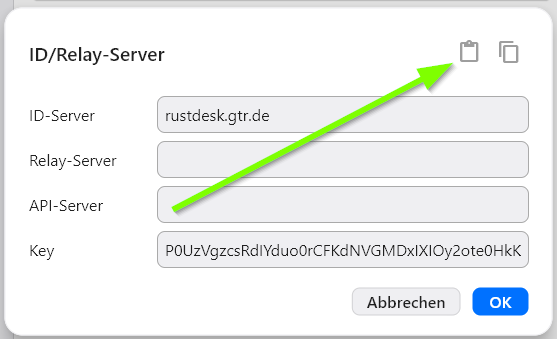
After import, the ID-Server field should read rustdesk.gtr.de and the Key field should be populated.
Network Requirements
Reachability
Client machines must be able to reach rustdesk.gtr.de outbound. DNS resolution must work for this hostname.
Required Outbound Ports
| Protocol | Port | Direction | Purpose | Notes |
|---|---|---|---|---|
| TCP | 21115 | Outbound | Control and command connection | Primary connection |
| TCP | 21116 | Outbound | Relay fallback | Used if UDP is blocked |
| UDP | 21116 | Outbound | Relay connection | Preferred for better performance |
Important notes:
- Port 21115 (TCP) handles command and control signals.
- Port 21116 should be enabled for both TCP and UDP for optimal performance.
- UDP is attempted first; TCP is used as fallback if UDP is blocked.
- All connections use TLS 1.2 or higher.
Recommended Firewall Rules
Windows Firewall (outbound rule)
Rule Name: RustDesk Remote Support
Direction: Outbound
Protocol: TCP/UDP
Remote Port: 21115, 21116
Remote Address: Any
Action: Allow
Linux (UFW)
sudo ufw allow out 21115/tcp
sudo ufw allow out 21116/tcp
sudo ufw allow out 21116/udp
Linux (firewalld)
sudo firewall-cmd --permanent --add-port=21115/tcp --zone=public
sudo firewall-cmd --permanent --add-port=21116/tcp --zone=public
sudo firewall-cmd --permanent --add-port=21116/udp --zone=public
sudo firewall-cmd --reload
pfSense / Enterprise Firewall
Create outbound rules allowing traffic to any destination on ports 21115 and 21116 (both TCP and UDP). Consider creating a traffic alias for easier management:
Alias: RustDesk_Ports = 21115, 21116

Firewall Rule:
- Direction: Outbound
- Protocol: TCP/UDP
- Destination Port: RustDesk_Ports
- Action: Pass
- Log: Optional (for audit trails)
VPN & Proxy Configuration
VPN passthrough:
- RustDesk works transparently through most VPN connections without special configuration.
- Ensure VPN network policies do not block ports 21115/21116.
- For split-tunnel VPNs, ensure RustDesk traffic routes through the VPN tunnel.
Proxy support:
- RustDesk supports HTTP and HTTPS proxy with authentication.
- Configure proxy settings in the RustDesk client (Settings → Network).
- Enter proxy server address, port, username, and password (if required).
- Proxy authentication supports basic credentials.
- If the firewall performs SSL inspection, consider adding exceptions for RustDesk connections to avoid performance issues.
Firewall SSL inspection:
- If the firewall performs SSL/TLS inspection, whitelist RustDesk servers or disable inspection for RustDesk traffic.
- SSL inspection can cause connection delays or failures.
Bandwidth & Performance Considerations
Connection overhead:
- Baseline (idle): 50 to 100 KB/s
- Active session (screen sharing): 200 KB/s to 2 MB/s (depends on resolution and activity)
- Audio only: 20 to 50 KB/s
- File transfer: varies with file size and network speed
Typical bandwidth usage:
- Standard screen (1920x1080): 500 KB/s to 1.5 MB/s for typical desktop activity
- High-resolution (2560x1440): 1 MB/s to 2.5 MB/s
- Low-resolution / minimal updates: 100 to 300 KB/s
Recommended minimum connection speed:
- 1 Mbps for basic remote support
- 5 Mbps for comfortable interactive sessions
- 10+ Mbps for multiple concurrent sessions or high-resolution screens
Latency:
- Direct connections: below 50 ms typical
- Relay connections: below 200 ms typical
- Connection type depends on NAT configuration and firewall settings.
Bandwidth Planning for Administrators
Capacity calculations:
- For concurrent sessions, multiply typical bandwidth per session by the maximum number of concurrent support sessions.
- Example: 3 concurrent sessions × 1 MB/s = 3 MB/s minimum pipe capacity.
- Add 20 to 30 percent overhead for protocol negotiation and network variations.
Network policy considerations:
- Configure QoS rules if RustDesk conflicts with business-critical traffic.
- RustDesk can be prioritized below production traffic.
- Monitor bandwidth usage to identify anomalies.
IT Administrator Deployment Checklist
- Review and approve firewall port requirements (21115 TCP, 21116 TCP/UDP outbound).
- Verify
rustdesk.gtr.deis reachable and resolvable from client networks. - Configure firewall rules in your environment.
- Test RustDesk connectivity from sample client systems behind the firewall.
- Verify proxy or SSL inspection exceptions are in place if applicable.
- Document the connection process for the help desk team.
- Test file transfer functionality if required for support workflows.
- Establish audit logging requirements and procedures.
- Create troubleshooting documentation for the help desk.
Troubleshooting
Connection Failures
Problem: “Cannot connect to RustDesk server”
Troubleshooting steps:
- Verify TCP 21115 and UDP/TCP 21116 are open outbound in the firewall.
- Verify
rustdesk.gtr.deis resolvable (nslookup rustdesk.gtr.de). - If behind a proxy, verify proxy settings in the RustDesk client (Settings → Network).
- Temporarily disable VPN to test direct connectivity.
- Check if SSL inspection is blocking the connection; try adding an exception.
Problem: “Connection times out after initial connect”
Troubleshooting steps:
- May indicate a relay server issue; ensure both TCP and UDP rules are open.
- Verify UDP 21116 is specifically allowed in the firewall.
- Test latency:
ping rustdesk.gtr.de. - If latency is very high (above 500 ms), the connection may be routed through the relay.
- Try switching between direct and relay modes if available in client settings.
Performance Issues
Slow screen updates:
- Check available bandwidth with a speed test.
- Reduce screen resolution or quality settings in the RustDesk client.
- Verify no competing network usage on the connection.
- Switch from relay to direct connection if possible.
High latency:
- Latency above 100 ms may indicate a relay connection instead of a direct one.
- Check the network path with
tracertortracerouteto inspect the route. - If using VPN, verify the VPN server location is optimal.
Audio/Video issues:
- Try disabling audio if the video connection is the priority.
- Reduce video resolution in client settings.
- Verify network bandwidth is sufficient for the session type.
Common Error Messages
| Error | Cause | Solution |
|---|---|---|
| ”Failed to authenticate” | Credentials incorrect or session expired | Verify authentication credentials; restart client |
| ”Network unreachable” | Firewall blocking ports | Check firewall rules; verify ports 21115/21116 are open |
| ”Connection refused” | Server unreachable | Verify rustdesk.gtr.de is resolvable; check DNS |
| ”Relay server error” | Cannot reach relay | Both TCP and UDP on 21116 must be open |
Support & Resources
For IT administrators:
- RustDesk documentation: https://rustdesk.com/docs/
- GitHub repository: https://github.com/rustdesk/rustdesk
- Security advisories: monitor GitHub releases for updates.
- Configuration guides: https://rustdesk.com/docs/en/client/
Internal support:
- Email: gtr-aa@gtr.de
- Support portal: Support Portal
- Help desk phone: +49 7361 94 11 0
FAQ
Q: Is RustDesk safe? A: Yes. RustDesk uses end-to-end encryption with RSA 4096-bit keys and AES-256. The open-source code has been publicly audited, and the GTR-hosted support servers are managed professionally.
Q: Where does the connection go? Is my data leaving Germany?
A: GTR operates its own RustDesk rendezvous and relay server (rustdesk.gtr.de), hosted in Germany. When a session starts, the GTR server helps both PCs find each other, then the actual remote-control traffic is established directly between the two PCs (peer-to-peer) whenever the network allows it. If a direct connection is not possible, traffic is relayed through the GTR server in Germany. No US cloud provider is involved, and no session content is tracked or stored. All traffic is end-to-end encrypted.
Q: Will my files be visible during a support session? A: The technician has full screen access during the session. File transfer is a separate function that requires explicit permission. All data remains encrypted.
Q: What happens to my data? A: All data is encrypted end-to-end. The GTR rendezvous and relay servers cannot decrypt session data. Data in transit is protected, and session content is not stored on servers.
Q: What if my firewall is very restrictive? A: RustDesk can work through proxies and most firewalls using ports 21115 and 21116. If all ports are blocked, contact IT to discuss exceptions. RustDesk can also work through VPNs.