

Information
See further details in the ProfDia manual!
Startup
- Open the
Database ConfigurationTab in the ProfdiaToolbox application.
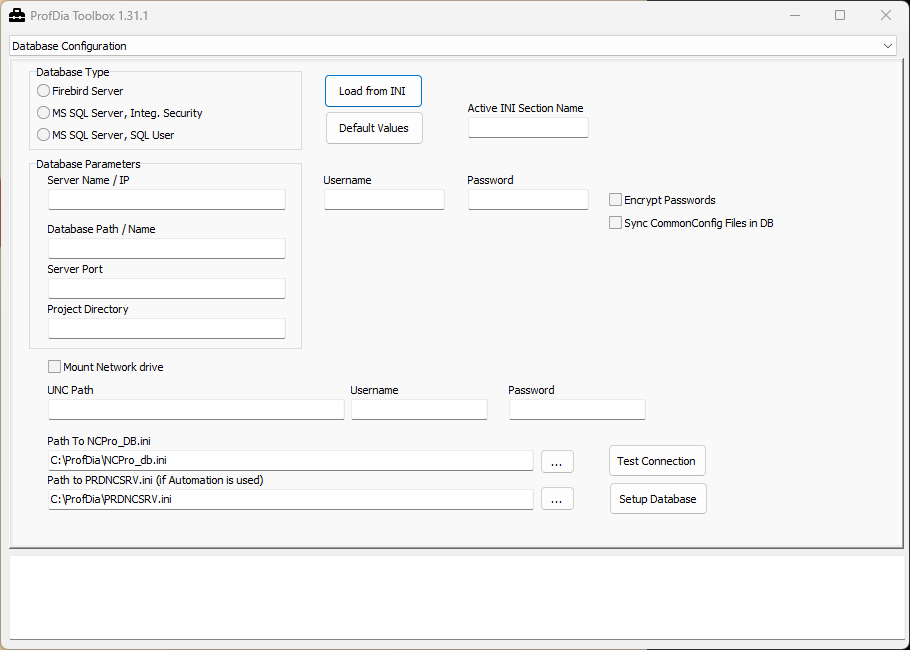
- Click on
Load from INIto show the actual configuration
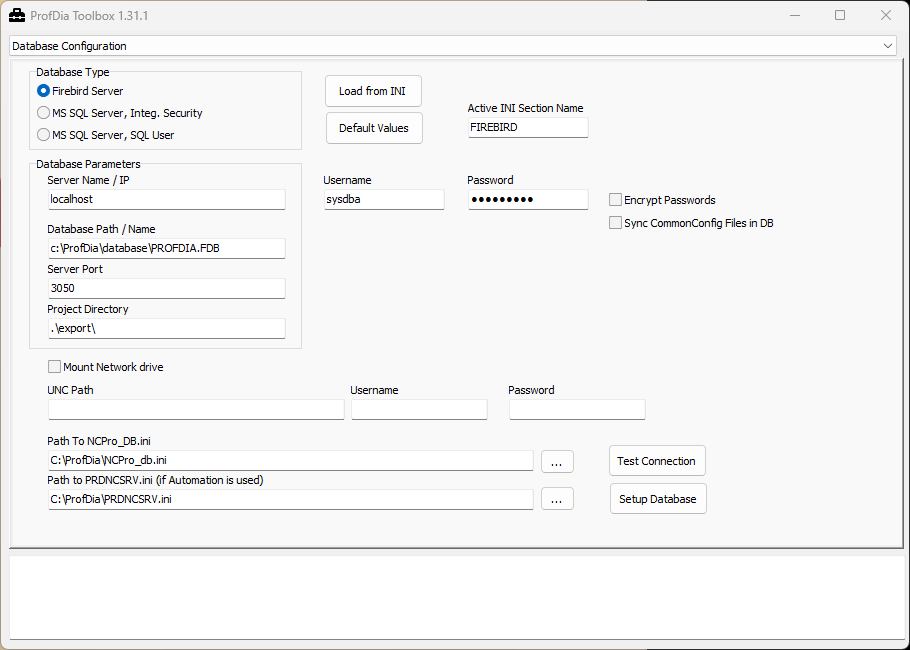
- The default configuration will be shown based on the installation and database location.
Setup Common Firebird Database / Windows Server
- Install the
GTR_Firebird_Server_Setup.exeon the Server. The Setup is located in theredistdirectory of every newer ProfDia 2.x version. The setup routine will install the Firebird Server as well as opening the required port3050in the Windows Firewall for incoming traffic. - Copy the database file(s) from the original host/machine to the new database server. When the databases of ProfDia and ProfDiaF should be moved to the common Firebird Server, two files have to be copied from the original host to the new server.
PROFDIA.FDB,PROFDIAF.FDB - After installing the Firebird server and copying the databases to the new server, adjust the configuration on each machine or programming station to the new database location:
- Server Name / IP: If the DNS works, the host name of the server can be entered, otherwise enter the IP address
- Database Path / Name: Enter the absolute path to the database file on the server. E.g.
d:\database\PROFDIA.fdb - After adjusting the configuration click on the
Setup Databasebutton. this will store the changes in the corresponding INI files - Now use the
Test Connectionbutton to check if the connection can be successfully established
Note
If the ProfDia and ProfDiaF databases are migrated to a new server, this procedure has to be repeated for ProfDiaF using the supplied ProfDiaToolbox application in the ProfDiaF installation directory.
Setup Firebird 2.5 Server via Docker
# Username: SYSDBA
# Password: masterkey, if not explicitely set
services:
  firebird:
    image: jacobalberty/firebird:v2.5.9-sc
    container_name: firebird25
    restart: always
    environment:
      - TZ=Europe/Berlin
      - ISC_PASSWORD=masterkey
      - FIREBIRD_USER=SYSDBA
      - FIREBIRD_PASSWORD=masterkey
      - FIREBIRD_DATABASE_DEFAULT_CHARSET=UTF8
    volumes:
      - ./data:/firebird
    ports:
- 3050:3050Migrate to Docker Deployment
First you can try to directly copy the FDB file(s) to the data directory of the firebird25 docker compose stack.
Then adjust the client configuration to connect to the new database using the ProfDiaToolbox:
- Servername / IP
- Database name
- Username
- Password
Hint
the absolute database path in that container is
/firebird/data/<dbname>.fdb
When the connection is successful you are good to go. But when you are facing an encoding issue like: Collation unicode for character set utf8 is not installed
Do the following steps to fix the problem:
Howto fix utf8 encoding error
tldr;
- Spin up the container
- Create a backup of the original database
- Restore the database to the new docker deployment
Spin up the container from above
docker compose upConnect to the shell inside the container
docker exec -it firebird25 /bin/bashBackup the existing database using gbak
Note
You need to enter the credentials of the
oldFirebird Server
cd /usr/local/firebird/bin
./gbak -b -v -user sysdba -password masterkey oldserver/3050:c/profdia/database/PROFDIA.FDB /firebird/data/PROFDIA.FBK
restore to the new server
Note
Use the credentials for the user of this docker instance as configured
./gbak -c -v -user sysdba -password masterkey /firebird/data/PROFDIA2.FBK /firebird/data/PROFDIA2.FDBSetup Firebird 5.x Server on Windows
A GTR Setup is available to install the latest Firebird 5.x x64 Server. Copy the installer to the server and execute the installer with admin privileges.
While installing, the wizard requires you to enter a password for the SYSDBA user. A random password is generated but a password can also be set.
Hint
When the setup is finished, the password as well as the relevant server information can be stored into a text file on the current users desktop or in the current users document folder
The file is named
Firebird_Credentials_<randomid>.txt
Sample content of that file:
==================================================================
FIREBIRD 2.5.9 SERVER
==================================================================
Instance Name: GTR_Firebird_25_Instance
Port: 3050
Username: SYSDBA
Password: masterkey  (default - please change immediately!)

Connection String Example:
  localhost/3050:employee


==================================================================
FIREBIRD 5.0.3 SERVER
==================================================================
Instance Name: GTR_Firebird_50_Instance
Port: 3055
Username: SYSDBA
Password: u&B5MQbQ*28Xg23f8ETU

Status: SYSDBA user created successfully!

Connection String Example:
  localhost/3055:employee

==================================================================
IMPORTANT SECURITY NOTES
==================================================================
- Save these credentials in a secure password manager
- Do NOT share these credentials via email or unencrypted channels
- For Firebird 2.5: Change the default password immediately!
- Both servers are configured to listen on their respective ports
- Firewall rules have been created for ports 3050 and 3055
Setup Firebird 5.x Server via Docker
services:
  firebird:
    image: firebirdsql/firebird
    container_name: fb50
    restart: always
    environment:
      - FIREBIRD_ROOT_PASSWORD=************
      - FIREBIRD_USER=alice
      - FIREBIRD_PASSWORD=************
      - FIREBIRD_DATABASE=mirror.fdb
      - FIREBIRD_DATABASE_DEFAULT_CHARSET=UTF8
    volumes:
      - ./data:/var/lib/firebird/data
    ports:
      - 3055:3050